User Guide: Meetings.PreferredHotels.com

Introduction

Preferred Hotels & Resorts launched a new dedicated meetings website in October 2025 to replace the legacy PHGMeetings.com site, creating a modern, planner-focused platform with improved search, richer meetings data, and tighter integration with hotel content and the I Prefer Planner Program.

The admin tool can be accessed at https://phgmeetings.com/dashboard and requires PreferredNet access to login.


Getting Started

Use this guide to manage your Meetings profile and help your hotel stand out to organizations searching for group, meeting, and event venues. It outlines what you can update, how changes appear on the site, and best practices to keep your profile complete, accurate, and performing at its best.


What the Preferred Meetings Site Does

The Preferred Meetings & Events site highlights your hotel’s group, meeting, and event capabilities for organizations worldwide. Users can search hotels, filter by guestroom count and meeting space size, review details, and submit RFPs. Keeping your profile complete improves visibility and engagement.

How Your Updates Appear Publicly

Your updates in the Profile Editor display on the public Meetings site and influence:

  • Dining venues

  • Meeting rooms and capacity charts

  • Hot Dates

  • Special Offers

  • Press Releases

  • Editable hotel information

Not updated through the Profile Editor:

  • Product Description Page (PDP) intro headers (This headline is shared with PreferredHotels.com, any copy changes need to come through Brand Creative). If the summary requires updates due to outdated or no longer applicable content, please submit your request to webcontent@preferredtravelgroup.com

  • Images are assigned via the Bynder/E‑com workflow

  • Fields dynamically fed from PreferredHotels.com, such as awards and accolades, and room count.

Accessing the Profile Editor

Direct link: https://phgmeetings.com/dashboard

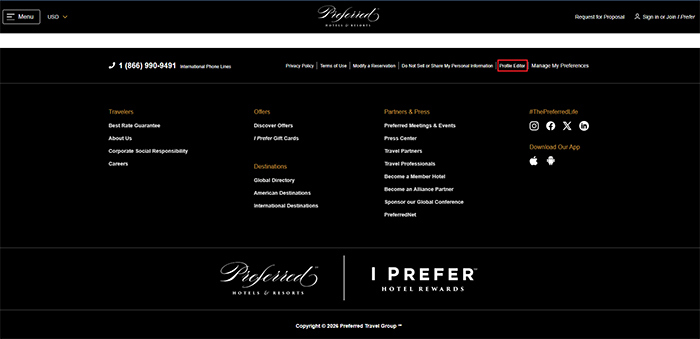
Via the public site: Scroll to the footer and select Profile Editor.
 

Edit Hotel Information

Step 1 — Your Hotel Workspace

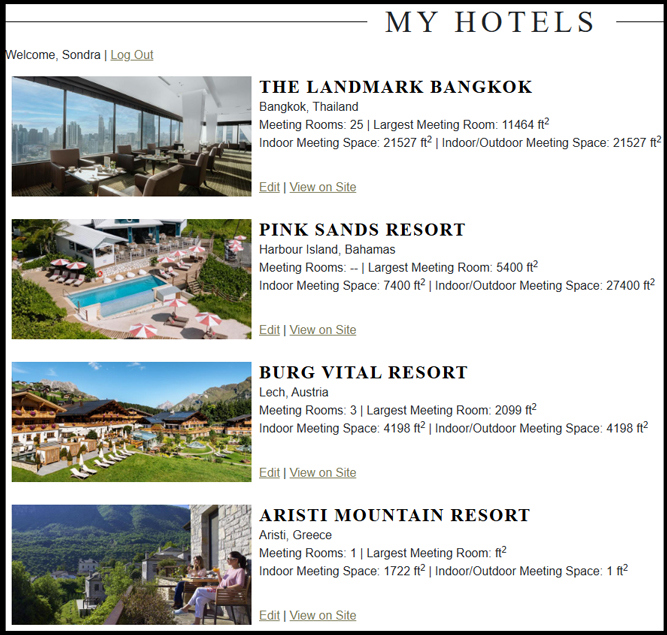
On the My Hotels landing page, you can:
  • Select a hotel to edit

  • Use Edit to update content

  • Use View on Site to preview your live profile

Step 2 — Property Dashboard: Editable Sections

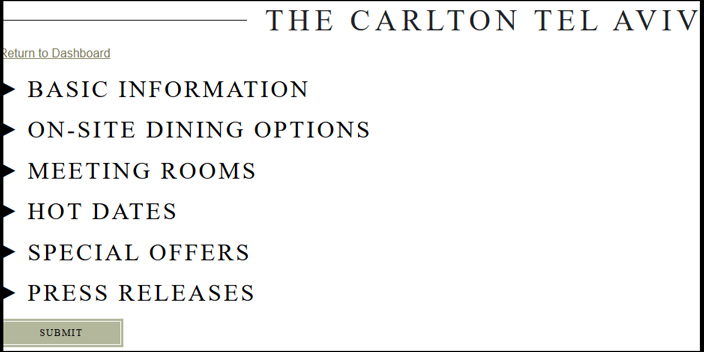
The dashboard includes the following update areas:

  • Basic Information, where you can manage key hotel details and the characteristics that set your venue experience apart. 

  • On‑Site Dining Options

  • Meeting Rooms

  • Hot Dates (date ranges that the hotel is offering discounted rates for events)

  • Special Offers 

  • Press Releases

*Save Rule (Important)

You must click Submit at the bottom of each section to save changes before navigating away.
Step 3 — On‑Site Dining Options

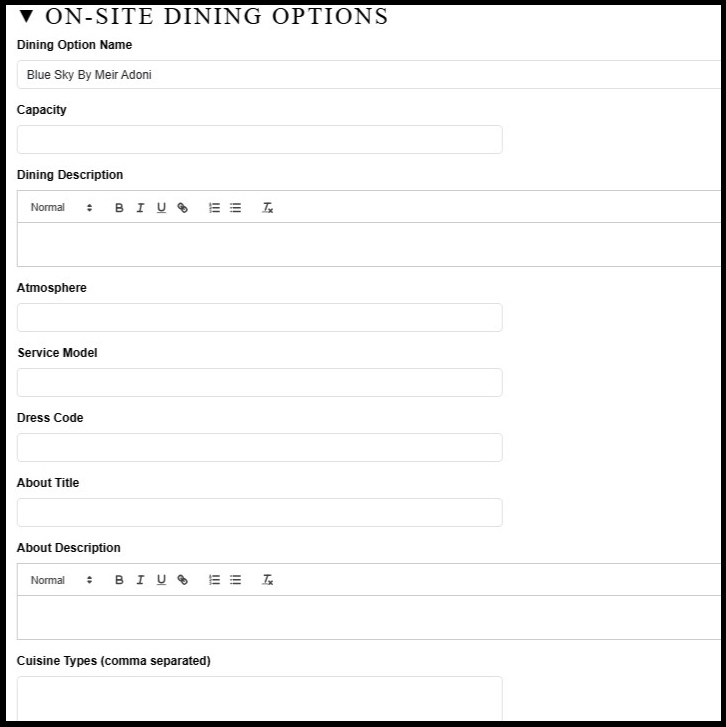
Complete all relevant fields for each dining venue:

  • Dining Option Name: Guest‑facing name.

  • Capacity: Seated capacity; include buyout if applicable.

  • Dining Description: 2–4 sentences describing cuisine, features, atmosphere, and notable details.

  • Atmosphere: Short descriptors (e.g., “Elegant fine dining”).

  • Service Model: À la carte, buffet, tasting menu, etc.

  • Dress Code: Smart casual, resort chic, formal, etc.

  • About Title / Description: Mini‑story including chef background or signature elements.

  • Cuisine Types: Comma-separated (e.g., “Mediterranean, Seafood”).

Pro tip: Upload high-quality dining images to Bynder and request assignment through Web Content.
Step 4 — Meeting Rooms

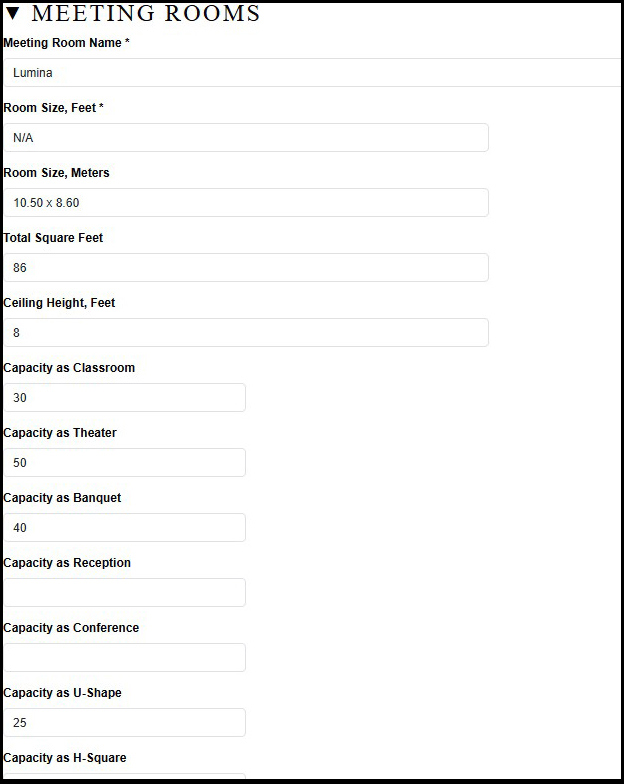
Complete all available fields to support accurate comparisons and filtering:

  • Meeting Room Name: Guest-facing name.

  • Room Size: In feet or meters; include dimensions for context.

  • Total Square Feet/Meters: Primary filter on the public site.

  • Ceiling Height: Required for staging/AV planning.

  • Capacity by Setup: Classroom, Theater, Banquet, Reception, U-Shape, H-Square, Conference.

Why it matters: Room data populates the capacity chart and reduces back‑and‑forth when organizations evaluate space compatibility. 
Step 5 — Hot Dates

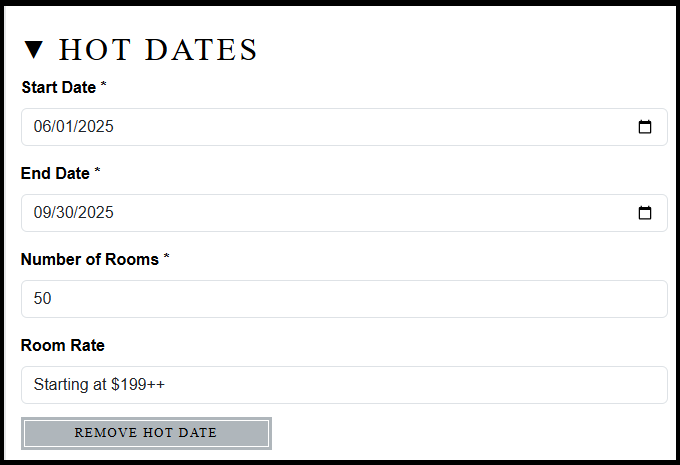
  • Visibility Window: Controls when Hot Dates appear publicly.

  • Number of Rooms: Use a realistic group inventory.

  • Rate: Value‑forward phrasing like “Starting at $199++”.

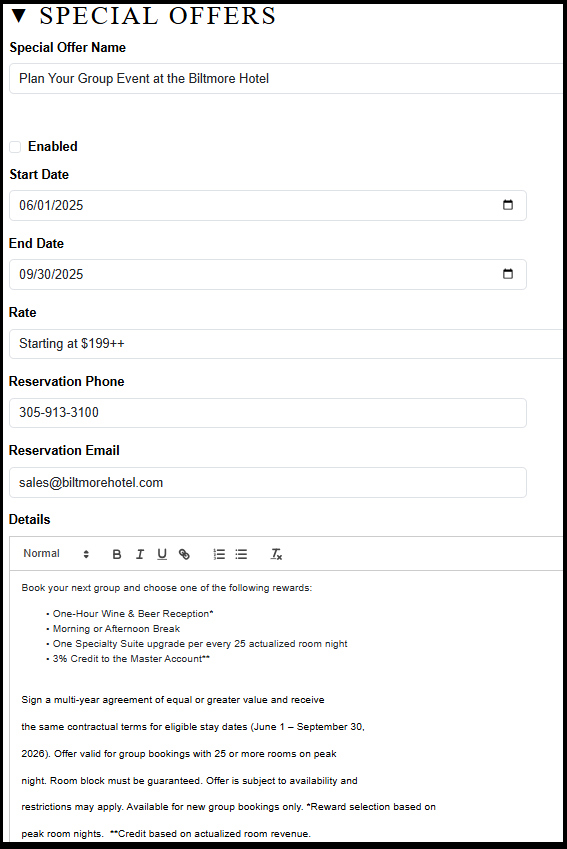
Step 6 — Special Offers

  • Enabled: Must be checked to publish.

  • Rate: “Starting at…” or %‑based savings.

  • Reservation Contacts: Use group‑direct email/phone.

  • Details: Inclusions, upgrades, credits (HTML supported).

  • Booking / Stay Windows

  • Group Requirements

  • Terms & Conditions: Bullet format is best.

Step 7 — Press Releases

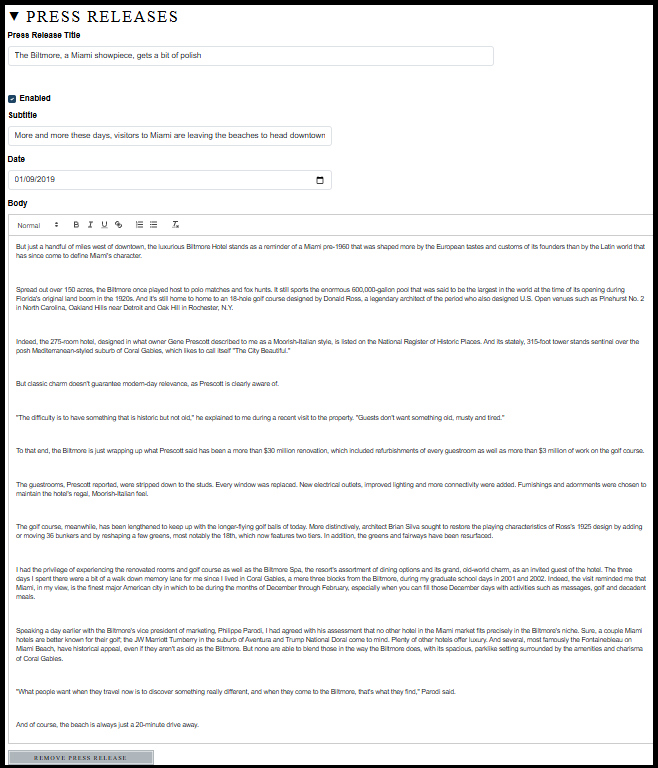
  • Title & Subtitle: Clear headline and short hook.

  • Publish State & Date

  • Body: Use sub‑heads, bullets, and quotes for readability.

  • Why include: Highlights recent improvements and builds confidence.

Step 8 — Saving & Verifying Your Changes

  1. Click Submit in each edited section.

  2. Return to My Hotels.

  3. Select View on Site to confirm your updates display correctly.

Step 9 — Support & Escalation

Routine issues: webcontent@preferredtravelgroup.com

Urgent issues:

  • Open a support ticket

  • Message E‑com via Teams (Ed Rampley, Sondra Boriths‑Sorensen, Marlén Chaidez)

Step 10 — Tips for Stronger Engagement

  • Complete all Dining and Meeting Room fields.

  • Use clear, benefit‑led copy.

  • Keep Hot Dates and Special Offers active and accurate.

  • Refresh photography regularly through Bynder.

  • Verify updates live after publishing.

Supported Formatting

HTML, bold, italics, and bullet lists are supported in all description and detail fields. E‑com can assist if you need help formatting.

Quick Links

Public Site: https://meetings.preferredhotels.com

Profile Editor: https://phgmeetings.com/dashboard


Image Updates

Updating Images (Hotel, Dining, Meeting Rooms)

Step 1 — Upload directly to our DAM (Digital Asset Manager) - Bynder: https://bynder.preferredhotels.com

  • Upload the highest‑quality imagery available, meeting a minimum requirement of 3000 x 2000 pixels at 300 DPI

  • Use clear filenames (e.g., HotelName_Restaurant.jpg)

    1. Click on or drop the image files in the Drag & Drop box

    2. Email addres(ses) Recipient(s) should be WebContent@preferredtravelgroup.com, to trigger Image Uploaded Notification

    3. Add a message that indicates which hotel the images are for

    4. Complete the Security Check and click on "Send Files"

    5. Images will be reviewed for approval and added to the hotel's image collection in the DAM.

Step 2 — Share with Web Content:

Step 3 — E‑com Assignment: Images are reviewed and assigned to the correct display areas.

Notes:

  • Dining card images are being updated portfolio‑wide; temporary placeholders may appear.

  • Meeting venue images/floor plans will be added in future enhancements.